

Think back to the days when you played Pokemon games on a Game Boy or GBA system.
Those were fun memories, except for the times when the games were just too slow. Moving around is slow, battles are slow, dialogue is slow, and more.
The games were still fun, but you could be annoyed in some cases, like grinding for levels or the load times.
Using emulators can do wonders when they can speed up the game to make it all better. That’s why we’re here to teach you how to fast forward Visual Boy Advance.
Other how-to topics to check out:
- How to Use Cheats on Visual Boy Advance (VBA): A Complete Guide
- How To Fix Save Data Could Not Be Accessed Error on VBA
- How To Fix “1m sub-circuit board is not installed” Error on VBA and MyBoy
- 5 Best GBA Emulators for PC
- How To Play GBA Games On PC

VBA’s Fast-Forwarding Feature
The fast-forward feature, also known as the turbo button, is something that is present in a lot of emulators.
When it comes to the Visual Boy Advance, the fast-forward button has been there even in the earlier versions.
It does what it says, where it fast-forwards or speeds up the game. You can flash through those long dialogues that you already know and make battles so much faster.
How to Fast Forward Visual Boy Advance
There are three ways for you to use the fast-forward feature in this game. Two of them are buttons you can configure, and one is a bit of a chore.
Method 1. Clicking on the Turbo Mode
This is the chore we are talking about. You have to click the Emulation setting and click on the Turbo Mode option.
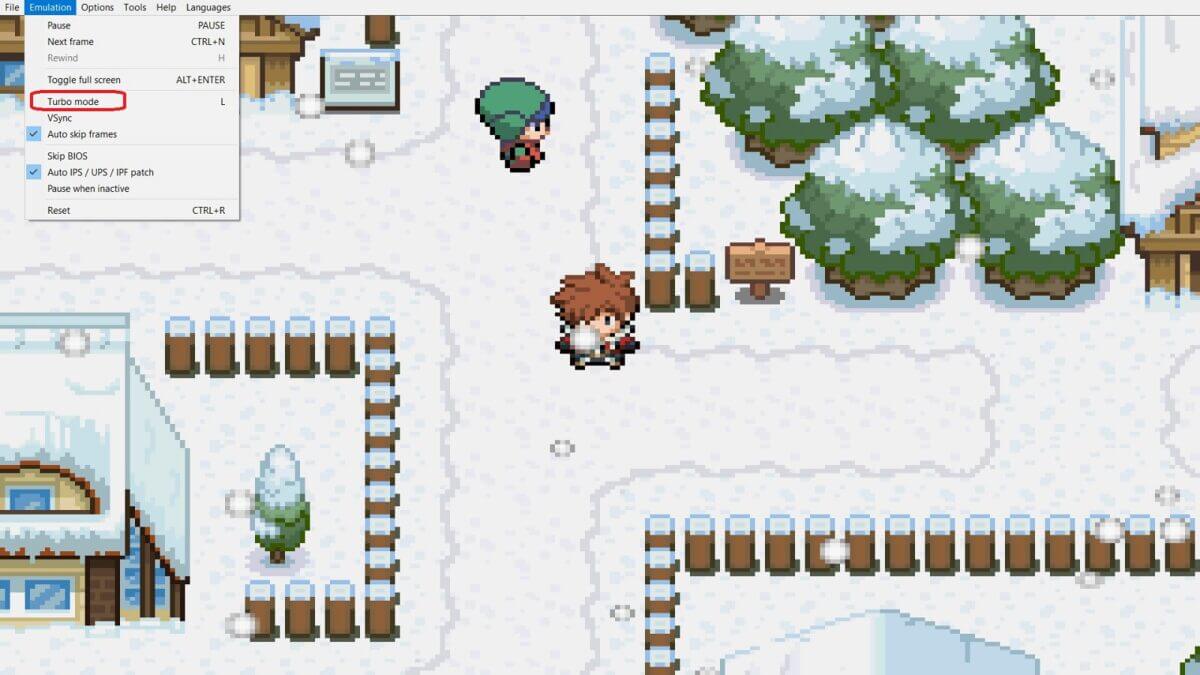
This will turn on the fast-forward feature, but if you want to turn it off, you have to do the process again. It’s annoying, but thankfully, there are two other methods.
Method 2. Using the Toggle Option
For this method, head to Options and click on Key Shortcuts. When the window opens, look for the Emulation window, and there you will see the Turbo Mode (Toggle) feature.
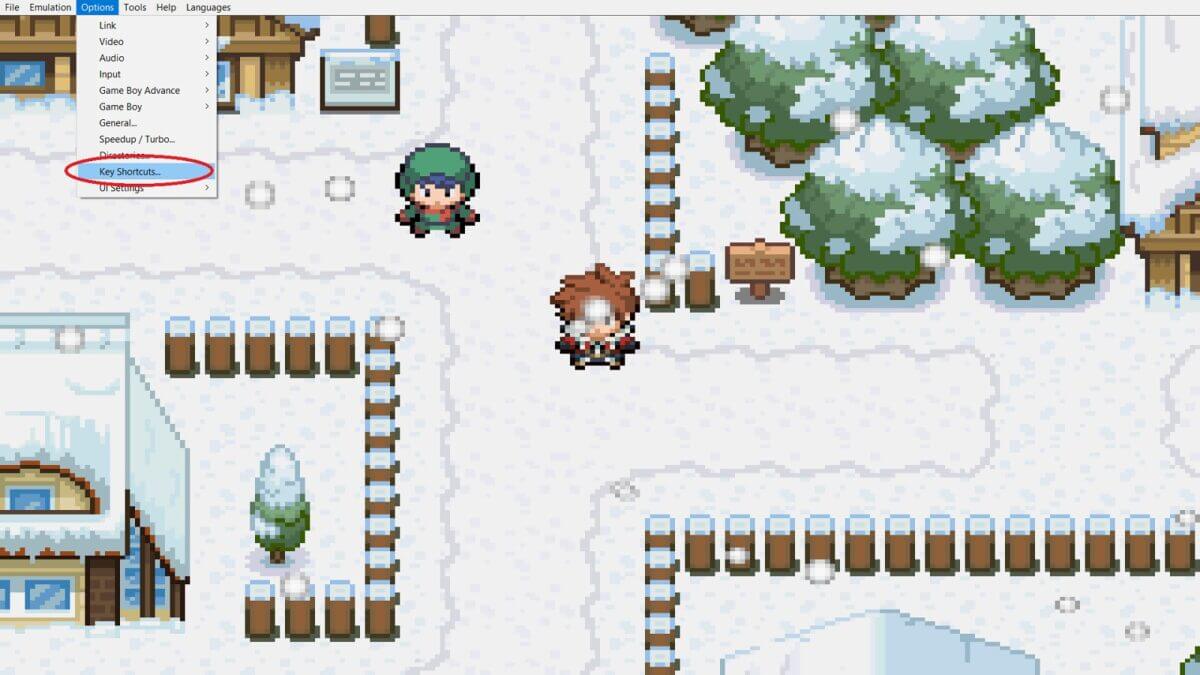
Input a button that you want the fast forward to be. You can put one or as many buttons as you want.

When you’re done, press OK to save the configuration. Back in the game, press the button, and the fast forward will happen.
Simply press the button again, and the fast forward will end. That’s so much more convenient than the other.
Method 3. Using the Hold Option
For this one, head to the Input option and click Configure.
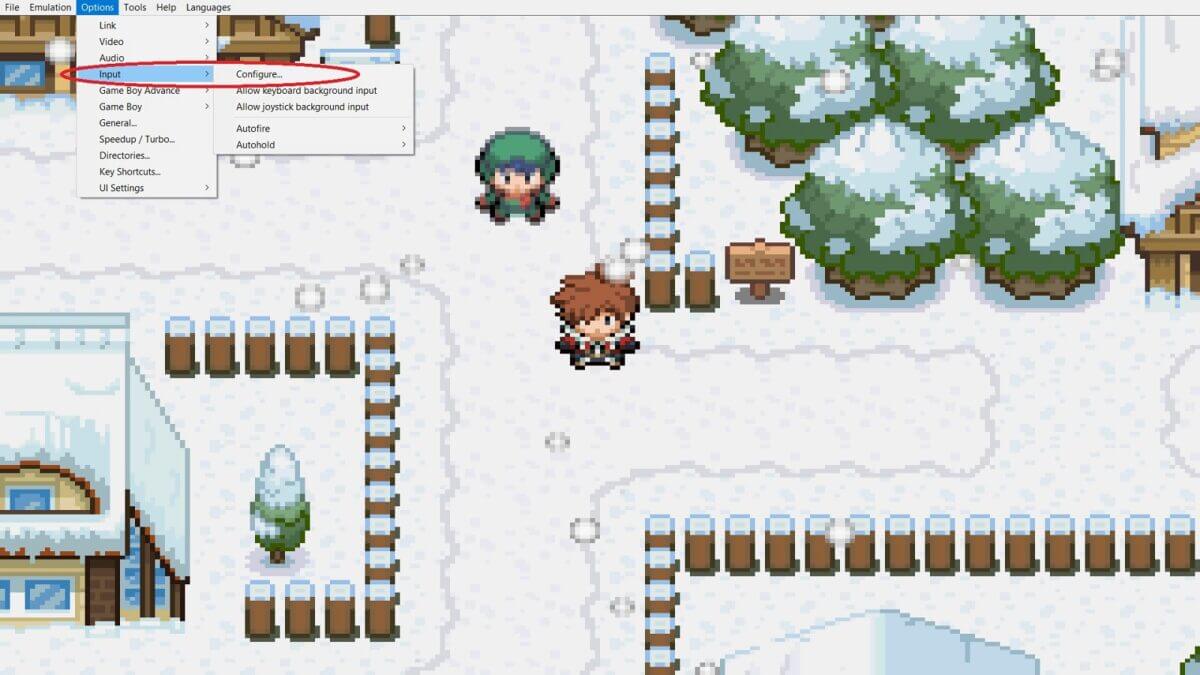
Pick Player 1 (which is you), and at this point in the Standard section, you can pick the buttons you want for your movement and action.
Click on the Special section, and the key you need to put a button for is Speed Up. You don’t need to put buttons on the others.
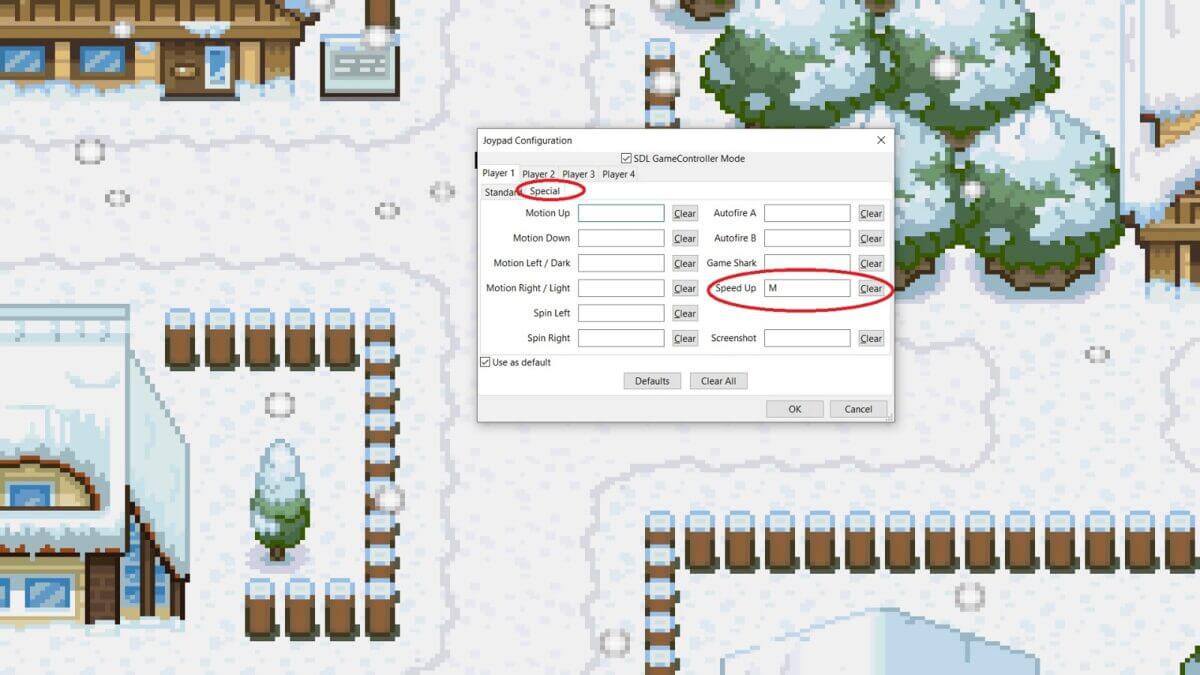
Save the settings, and you can now fast forward the game by holding the button. Unlike the toggle option, this one isn’t a one-click speed boost.
You have control when you can hold the button for the parts you want to speed through and just release when you don’t want to go fast.
Setting Up Your Turbo Settings

The Visual Boy Advance will allow you to configure several things related to the turbo feature. Click on the Options, and you will see the Speedup/Turbo settings (image above).
Now, you can change some things to make your game faster and other factors.

Percent of Normal
This allows you to go as fast as you want. In the image above, the 900 means that the turbo feature will boost the game’s speed by 900%.
You can change this to be less than that or more. Making it faster may not be ideal, as it may bug the game out, but feel free to try.
Frame Skip
This one isn’t entirely necessary. Whether you click on this one or not, the game will still fast forward normally. This is mostly for systems that cannot handle the VBA emulator’s processing power, but nowadays, most systems can handle the VBA.
Mute Sound
When you fast forward and the sound isn’t muted, the game’s audio will sound weird. That’s because the game is speeding up, so the sound and music will be jumbled. It’s not a big deal, but just mute the sound if it annoys you.
The game will fast forward with no sound, but it will come back once the turbo is turned off.
FAQs
Which is better? Toggle or Hold?
That really depends on how you play. Toggle is good if you’re having a long dialogue. Just press the turbo button, and once the dialogue is over, press it again.
Holding is good for battles. You can also hold when the boring animations are happening, and let go when you want to make your move. It’s the same either way, and holding can be a chore, for the most part.
Does fast forwarding break the game?
It doesn’t, regardless if you’re playing an official game or a ROM hack; fast forwarding does not break the game.
How fast your turbo is configured may make you a bit dizzy since the game will blitz right through you.
In Closing
Having that turbo button is a gift from heaven. This is always convenient when you’re playing Pokemon games and ROM hacks, when you don’t want to spend a long time on battles and dialogue.
Now that you know how to fast forward Visual Boy Advance, go and get started.
Keep in mind that all versions of the VBA have this feature. The older ones have different settings, so just search the key areas. Those would be emulation settings, key bindings, and more.
