

Playing on emulators, for the most part, is easy to do. Just launch the emulator, launch the ROM, and you’re good to go. There are some that require a little bit of tinkering.
If you used a PlayStation 2 emulator, you would know the pain of setting it up. You have to attach and use the right BIOS, plugins, and so much more.
Thankfully, the Game Boy and GBA emulators don’t require that much of a hassle. You will still want to have the best settings for your GBA emulators, like the Visual Boy Advance.
We’ll give you some tips to have the best quality settings for Visual Boy Advance.
Other topics to check out:
- Visual Boy Advance For Mac Alternative Emulators
- Visual Boy Advance (VBA) Review for GBC and GBA Gaming on Windows
- How to Use Cheats on Visual Boy Advance (VBA): A Complete Guide
- How To Fix “1m sub-circuit board is not installed” Error on VBA and MyBoy

Optimal Quality Settings for Visual Boy Advance
For Video Settings
There are a lot of different settings for the videos that you can have for your VBA gaming experience. The good thing about these settings is that you can change them at any given time.
You can even apply them to any official game or ROM hack, be it Game Boy or GBC.
Default or Bilinear
Going on Options and then Video, you will see the Bilinear Filter. When you’re playing on default, the game looks like what it is on the GBA. It has those pixels and the rustic look of the game.

Turning on the Bilinear option gives it a polished look. The game doesn’t look pixelated, and it has a blurred but clean look to it. If you want to go for the classic look, just turn off the Bilinear Filter if it wasn’t turned on.
Frame Skipping
Frame skipping is an option under the configuration settings for videos. There’s a lot of confusion as to what this does.
The answer is that if your device cannot handle the VBA’s emulation, you can choose to increase the frame skip.
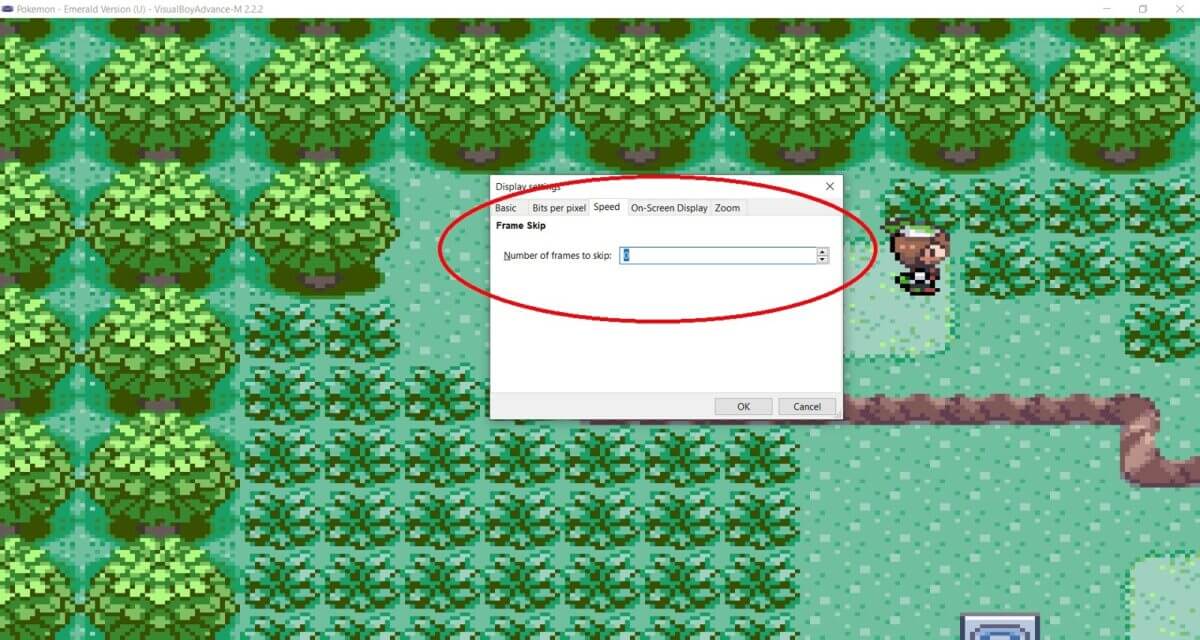
If the emulator runs perfectly, there’s no need to increase the frame skip. Just set it to zero, because if you increase the frame skip, the emulation actually runs slowly. If you max out the frame skip, the game moves choppily and slowly.
Changing the Pixel Filter
This video option allows you to apply a filter to the game. The Bilinear filter is a filter, but the ones included in the filter options can do more.
There are a lot of them, so you can see some of their effects on the images below.

Simply press CTRL + G when you’re playing on the VBA. The filter will be added right away, and you can see what filter it is the moment you change it. Try to find a filter that works for you, because you can also mix this with the Bilinear filter, or don’t use it if you don’t want to mix things up.
Changing the Interframe Blending
This one changes a bit of the game’s visuals while moving. This isn’t entirely visible, but we can recommend using the Motion Blur. It makes the movement a bit more fluent.
While motion blur is frowned upon in 3D games, for the VBA, this one doesn’t make your head ache. The other option is Smart blending, which doesn’t really look that obvious.

Retaining the Aspect Ratio
For this one, just check Options and Video again. You’ll see the Retain Aspect Ratio feature. Clicking on this will put black bars on the side. This is a good feature to use for your Game Boy and GBC games.
The screen doesn’t stretch out the game, and when you go full screen, it is even more beautiful. This isn’t bad to use for GBA games.

Video Settings You Don’t Need to Change
The following are options for the video section that you shouldn’t bother changing.

- Zoom – There is no need to touch this because if you do, the game screen will be minimized when you go full screen. It’s a small screen with a black background when that happens.
- Bits per pixel – Do not alter this; the game will crash if you change it. The default is 32, so just keep it that way.
- On-Screen Display – This one just puts the frame rate and speed percentage. Turn this on if you want to know the details, but it’s not necessary.
Audio Settings to Tinker

For the audio settings, there are a lot of them that you can tinker with. However, there really isn’t much of a change when it comes to what you can change.
On the image below are those that you can change, but we couldn’t find any notable difference. It’s best to just turn it off or avoid adding any changes to the audio.
Other Settings to Change
Real-Time Clock
Go to Options and then go to Game Boy Advance. The Real-Time Clock should be turned on when you’re playing games that depend on it. This setting makes it better when you can sync your time in real life.

Minor Settings
- Save Type – Just keep this as the default. Unless the ROM file corrupts the save files, you can change it to Flash or check online what the compatible save file is for the ROM.
- Flash Size – 128k is the best default one you can rely on. Once again, just change it if the game is bugging out, but this works for most ROMs and hacks.
Our Recommended Settings
This is just our recommendation; after what you’ve read above, you can determine your own settings. Feel free to use this one as listed below.
- Bilinear: Turned off.
- Frame Skipping: Set to zero.
- Pixel Filter: xBRZ 2x.
- Motion Blur: Turn on.
- Retain the Aspect Ratio: Turn on if you’re playing in full screen.
- Audio Settings: Change what you prefer, but we don’t have any recommendations for this one.
- Real-Time Clock: Turn it on.

FAQs
Does combining different settings cause the game to crash?
The filters and other video settings do not cause the game to crash. It is mostly the Save Type and the emulation settings.
If we didn’t tell you to change anything that isn’t a video setting, then just don’t do it.
Are the recommended settings good for both GBA and GBC games?
Yes, all types of filters and settings will apply the same for GBA and GBC games. It doesn’t matter if it is an official game or ROM hack; the settings will still be applicable.
ROM hacks may have better output, since some of them may have custom graphics.
In Closing
These are the best quality settings for Visual Boy Advance that you can use. These are just recommendations, after all. Feel free to find your own style.
Changing the Pixel Filter also gives you options to make your game like a painting with the HQ x6 filters. Remember to adjust the settings that can affect the gameplay, like the Save Type and Flash Size.
If the file is getting corrupted, you have to check what the save settings are for the game that you are playing, because they may vary.

Are there any dedicated ways to make money through the cheat system? For Pokémon classic. I can’t seem to find one.