

Normally, when you use an emulator for your Pokemon and ROM hack games on PC, you just need your keyboard.
But for mobile devices and phones, touchscreen features are the way to go. Still, you can always use a controller to play your emulators on a PC.
It isn’t a difficult task to implement this, but many people are getting confused in doing it. That’s where we come in; we’ll show you how to set up a controller on Visual Boy Advance, including other relevant details that might help you out.
The VBA is one of the many emulators with controller support, when you know how to do it.
Other emulator guides worth checking out:
- How To Fix White Screen On Visual Boy Advance
- Visual Boy Advance: How To Fix Internal Battery Run Dry Error
- How To Fix “1m sub-circuit board is not installed” Error on VBA and MyBoy
- How to Use Cheats on Visual Boy Advance (VBA)

General Overview
Before we get to the actual steps of how to set up a controller on Visual Boy Advance, we need to give you some insight first on how this works.
First of all, you need to have a physical controller for this to work. You need to secure the hardware yourself, and there are a couple of them out there, so you need to find the one that fulfills your needs.
These controllers are also usable not just for GBA emulators but for other systems as well.
It also helps when you have the latest Visual Boy Advance emulator. However, we doubt some of you are using VBA emulators from the late 2000s. A lot of the versions of the VBA have controller support.
The USB Controller
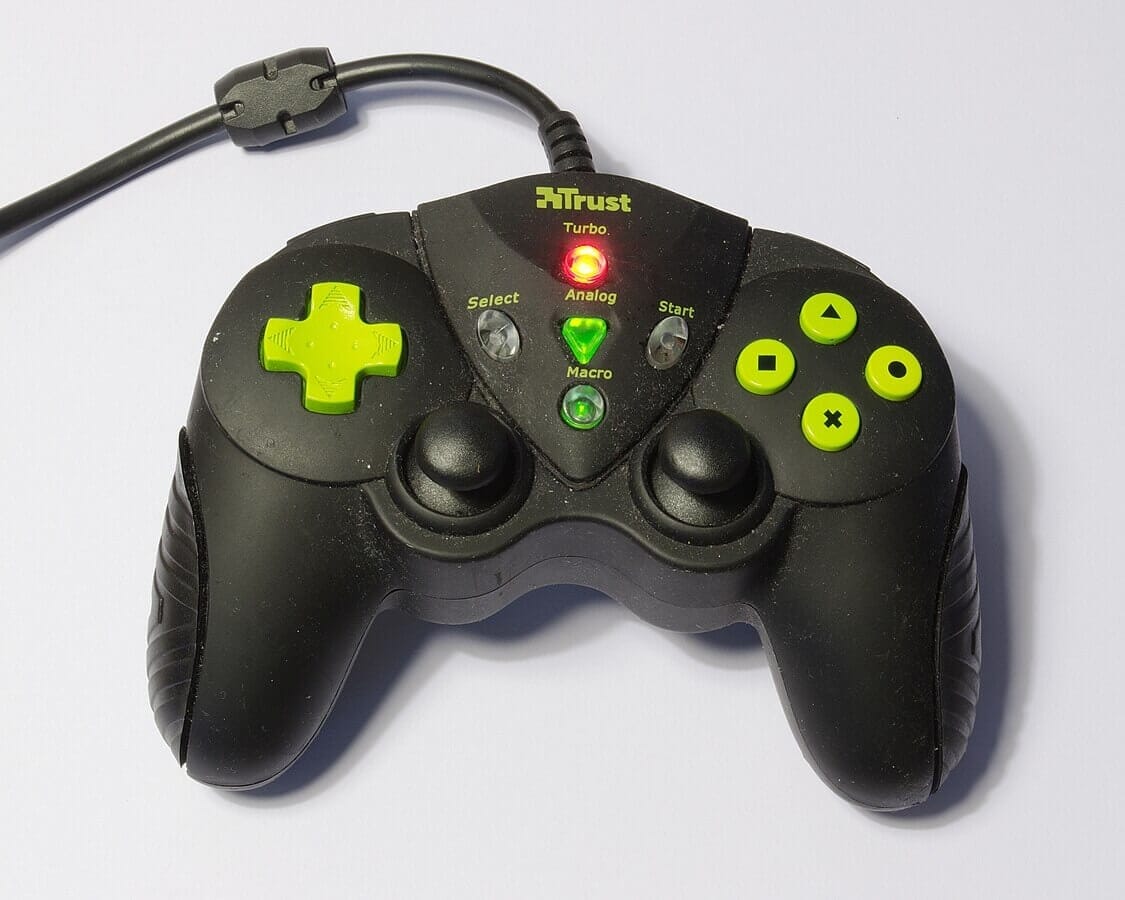
This is the most basic type of controller that is used by those who play on emulators. These controllers aren’t necessarily branded, but compatibility is important.
You cannot just use a PlayStation or Xbox controller. You will need to find a generic type that will be usable on your PC.
Using it is easy, since you just have to plug it into the right output; much like you connect your keyboard to your PC, you can do it the same way.
Check if the controller works, and that’s how you can get started.
How to Set Up the USB Controller
Step 1: Plug the controller into the PC

Step 2: Check if the controller works
Open up the Control Panel on your PC. Locate the controller and open it. Check and see if the controller is functioning.

Step 3: Launch the VBA

Step 4: Set up the key input
Now that the VBA is launched, head to the Options and select Input.
You will now be in the section where you have to set up the buttons that are used on a regular Game Boy Advance system.
Do the usual thing that you would do with a keyboard. Set the key with the button on the controller that you want to have.
The difference here is that instead of the characters on the keyboard appearing, it would be something generic like BUTTON 1 or whatever. That is because the buttons on the USB controller aren’t mapped out.
Think about the buttons on a PlayStation controller. You have Square, Cross, Circle, and Triangle. The USB controller’s equivalent would be a bit different.
Once you’re done setting up the buttons, save and continue.

Step 5: Test the controller
Now that you’ve set your buttons correctly, test and see if everything is working. Test the directional buttons to see if movement is working.
Test the action buttons and others, and see if there are any issues.

The Bluetooth Controller
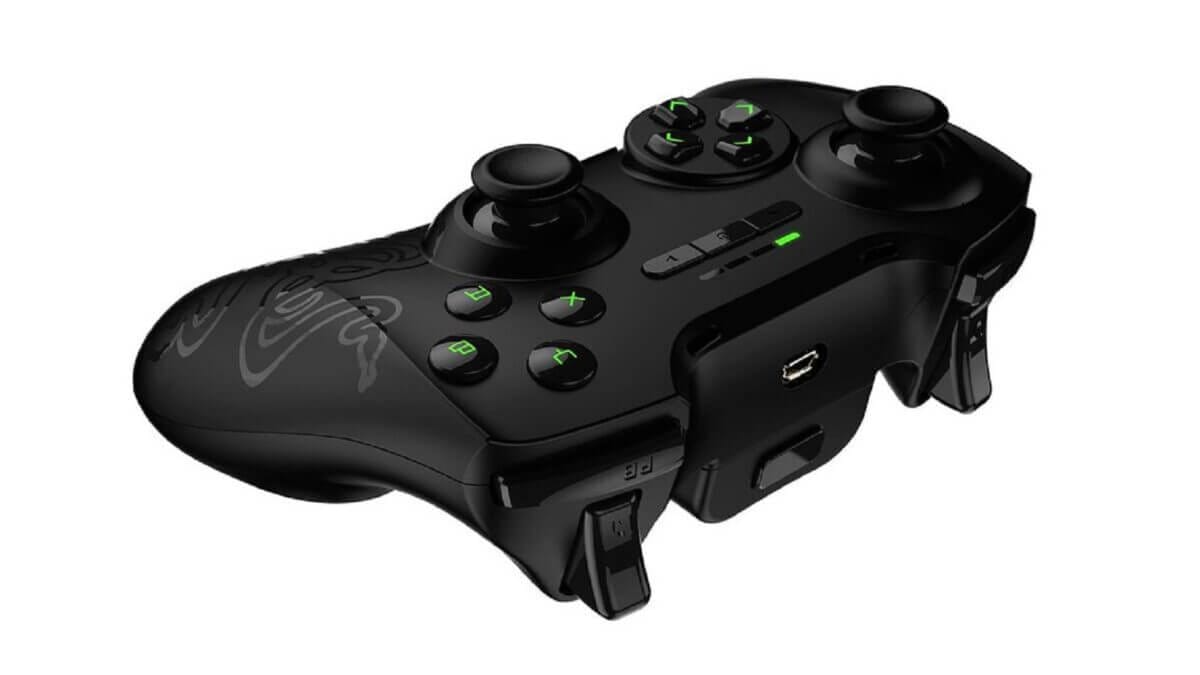
This type of controller is the same as the USB. The only difference is that you don’t need to plug it into the port.
The steps for setting up the controller are the same as for the USB controller. You will need to connect the controller via Bluetooth to make it work.
Also, don’t forget that you will need to charge the Bluetooth controller because it runs on its own battery.
Nevertheless, it is very convenient for some who prefer to play on something like an Android TV, where emulators can also run on it.
Important Details to Remember
Limited Buttons
A controller usually has around 12 to 16 buttons, with the directional buttons included. You can set features like the turbo button on your controller.
However, convenient shortcuts like save states usually don’t work with most controllers.
Cheats are also tricky to use, since you’ll still need a keyboard and mouse to enter codes and move the cursor to the Options and Cheats menu.
The controllers are good for in-game mechanics, but not the emulator features.
Controller Price and Quality
You don’t need to buy an expensive controller. There are a lot of affordable ones out there that are enough to fit the bill.
The Bluetooth controllers are a bit expensive, so you can settle for the USB types. There are those that are usable for GBA emulators and other systems like the PlayStation 2 and more.
Just handle your controllers with care so that they won’t get damaged quickly.
FAQs
Can I use my controller and keyboard at the same time?
The answer is yes. You can set up your controller for the basic in-game functions like movement and action buttons.
The GBA only has six action buttons, and they are A, B, Left Trigger, Right Trigger, Select, and Start. You can set all of those on your controller and the rest on the keyboard.
Set up the other features like save states, using cheats, screenshots, and more on the keyboard. Don’t forget that you can also set up more than one player configuration.
Let the first player use the controller and the second player on the keyboard.
Is it true that you can also use your phone as a controller?
Yes, but the process is long, and finding the right app is tricky. That’s because a lot of these apps are not free, and you need to register.
We don’t really recommend this method, but feel free to try. To give you an idea of the steps with this, it will really show you how hard it is:
Step 1: Download the app on your phone.
Step 2: Download the app on your PC since both have to be linked.
Step 3: Connect the phone app and PC app via Bluetooth or WiFi.
Step 4: When all of that connects, set up the button configuration.
In Closing
The key to enjoying your GBA Pokemon games and hacks is to know how to set up a controller on Visual Boy Advance.
This is a nice alternative when you’re bored with using your keyboard. Plus, it’s not that good when you’re always hunched over the monitor.
Playing on a couch with your Bluetooth controller seems like a good feeling when the PC monitor is visible from a distance.
It is even better when you can play the game and view it on a large TV monitor. Sit back and relax with the controller in your hand and catch them all.
