

If you’ve been around since the GameCube and GBA era, you probably remember the excitement of linking the two systems together.
Back in the good old days, we used to need a special, dangling GBA link cable to connect the GameCube to a Game Boy Advance (GBA).
This opened doors for Pokemon trainers to trade, battle, and unlock exclusive content in games like Pokemon Colosseum and Pokemon XD: Gale of Darkness or even manage storage in Pokemon Box: Ruby and Sapphire.
Today, you can still relive that experience, minus the hassle of cables, by simply connecting mGBA to Dolphin Emulator on your PC. In this guide, we’ll show you exactly how to set it up so you can enjoy those classic features again.
More emulator guides from us:
- mGBA Review for Playing Pokemon GBA Games
- How to Use Cheats in mGBA: A Complete Tutorial
- Best Pokemon Emerald Emulators for PC, Mac, & Mobile (Safe & Free)
- Best GBA Emulators for Pokemon Gaming

Why Connect mGBA to Dolphin Emulator for Pokemon Games?
Did you know that most Pokemon players don’t even know about this feature? It’s no surprise since it’s pretty ancient.

But here’s why you would want to connect mGBA to the Dolphin emulator today.
- Pokemon Colosseum and Pokemon XD: Gale of Darkness Transfers: Connecting mGBA to Dolphin allows you to move your Pokemon from GBA titles like Ruby, Sapphire, FireRed, LeafGreen, or Emerald into the GameCube games.
- Pokemon Box: Ruby and Sapphire: Store and organize tons of Pokemon from your GBA games. This was the OG predecessor of Pokemon Home.
- Battle and Trade: via linked GBA game in compatible GameCube Pokemon titles like Pokemon Colosseum.
How to Connect mGBA to Dolphin Emulator
Connecting two emulators can be tricky, let alone two different emulators. The mGBA and Dolphin connection was doable, but it was riddled with crashes.
And being able to connect these two successfully was a complete lottery with no clear-cut reasons when failing.
That’s why the developers of Dolphin finally blessed us with an all-in-one GameCube-to-GBA connectivity solution — the integrated GBA option in Dolphin.
Things You’ll Need:
- Dolphin Emulator (Latest Version)
- A GBA BIOS
- Compatible GBA ROMs/Pokemon Ruby/Sapphire/Emerald/FireRed/LeafGreen
- mGBA to validate the save
- Compatible GameCube game
Step 1: Set up Dolphin
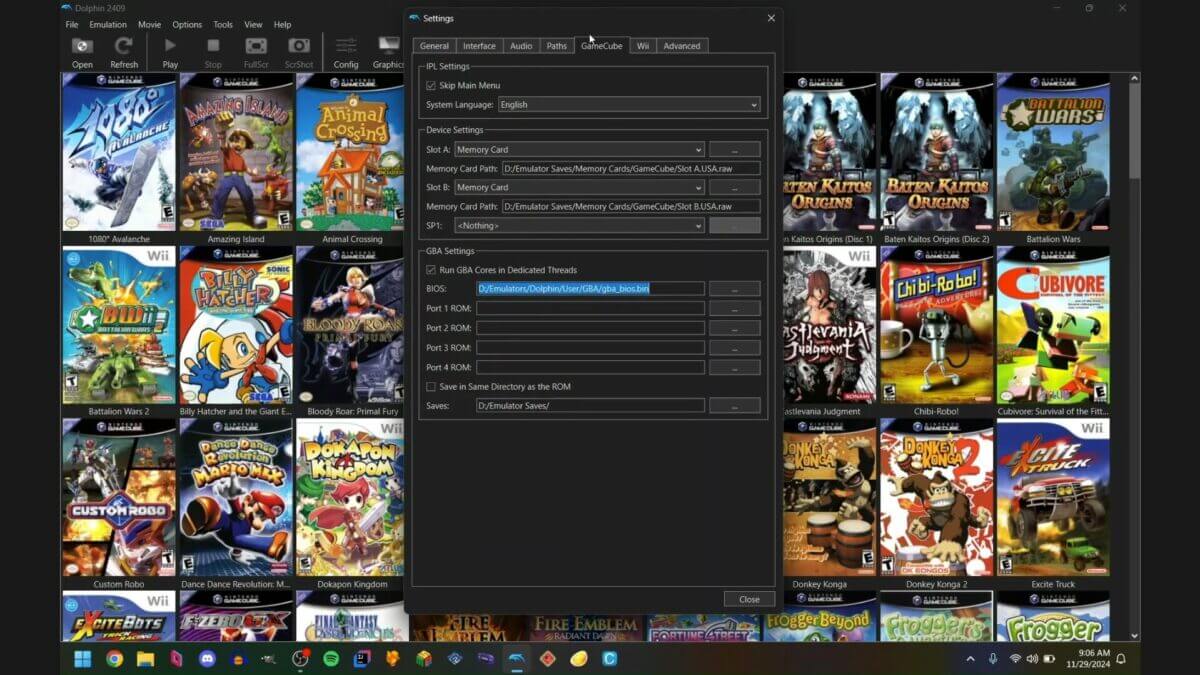
First, launch the Dolphin emulator. Before you launch a game, go to Config, GameCube, and then check your GBA BIOS.
If the BIOS is missing, the integrated GBA window will remain black even when booted. Once that is successfully set, proceed to the saves directory for your GBA.
The saves directory is the folder where you should copy your Pokemon’s game saves or .SAV files from your mGBA emulator. Setting these two properly is crucial in making the GameCube and GBA connection emulation work.
Step 2: Launch Your Game

In this tutorial, we’ll be using Pokemon Colosseum as an example, but this process works with any compatible GameCube title.
You just need to go to a certain area or talk to an NPC in your game that triggers a GBA connection. In this case, we’ll try trading a Pokemon to Pokemon Ruby on the GBA.
So, open the Pokemon Colosseum. A completed save file works best to ensure all features are unlocked.
Now go to the Pokemon Center in Phenac City and talk to the lady on the bottom floor. Choose Trade Pokemon.
Step 3: Connect to the Integrated GBA

This is where things can get tricky, so read the following instructions carefully. Once the Game Boy Advance Connection screen comes up, take note of the on-screen message and which controller socket it wants you to use. In this case, it says Controller Socket 2.
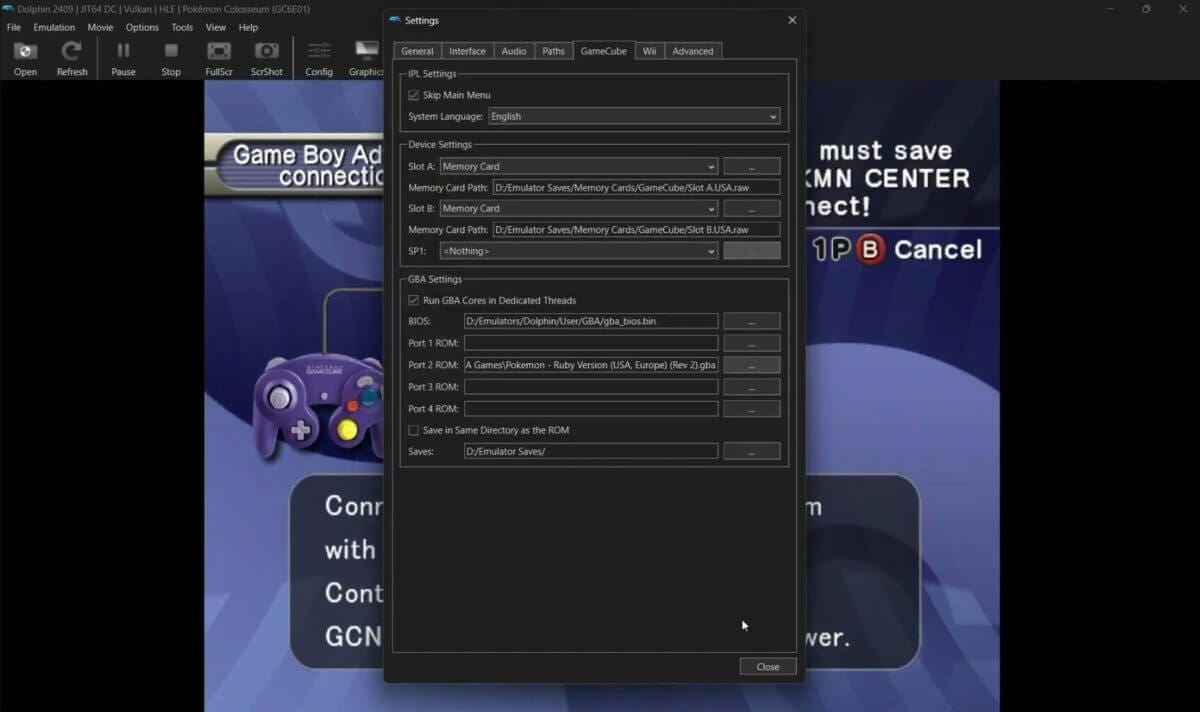
So, go to Config, GameCube, and then under GBA settings, set the Port 2 ROM. Look for the GBA ROM you want to connect to or trade with.
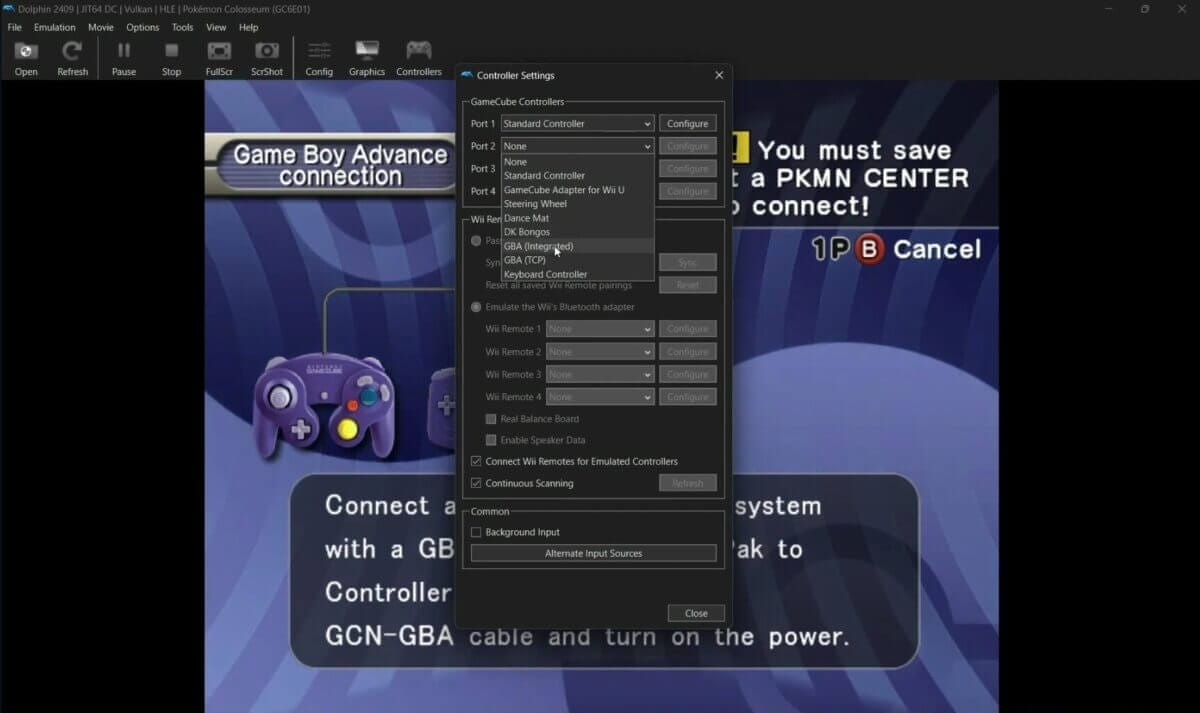
Next, go to Controllers and set Port 2 to GBA (Integrated), and close the menu. The GBA window should launch after.
Step 4: Rename Your Save

When you do this for the first time, you will encounter an error like “The GBA Game Pak has not been saved properly.” This is because Dolphin is loading the wrong .SAV file.
So, go to Config, GameCube, and check your GBA saves directory. Open the path and check the files in the folder.

Make sure you copied your Pokemon save file (.SAV) here. If you did, you’ll notice that there are two of them, just like the Pokemon Ruby save files in my example right here.
Look for the one with the -2 (depending on your Port number earlier) in its file name.
That save is created automatically by Dolphin and doesn’t contain any gameplay data. So copy its file name and delete it.
Then, rename your actual save file (the one from mGBA) by adding the -2 in its filename. Or just paste the filename you copied from the first one. Dolphin will now use this save for the connection.
Try steps 2 and 3 again, and you should be good to go.

Conclusion
Congratulations! You now know how to connect GBA and GameCube using mGBA and Dolphin emulators.
With Dolphin’s integrated GBA feature, the process is smoother and more reliable than ever. Once your saves and BIOS are set correctly, it’s almost plug-and-play.
From transferring and trading Pokemon to battling with your friends the vintage way, these features let us take a stroll down memory lane and relive pure bliss moments from childhood.
If you want more tutorials and tips like this, make sure you check out our other articles at Pokemoncoders.
