

mGBA is one of the best Game Boy Advance emulators available today, letting you relive classic GBA titles right on your PC. One of its nifty features, and why I love using it is the ability to customize your controls fully.
Whether you love a quick and easy plug-and-play keyboard setup or prefer the feel of a gaming controller, mGBA has you covered.
In this article, I’ll teach you the way of changing controls in mGBA emulator for a better and more personalized emulation experience.
More emulator content for you:
- mGBA Review for Playing Pokemon GBA Games
- How to Use Cheats in mGBA
- Best Pokemon Emerald Emulators for PC, Mac, & Mobile (Safe & Free)
- 5 Best GBA Emulators for Cheating
Benefits of Changing Controls in mGBA
Better Gaming Experience
By customizing your setup, you can create a control scheme that fits your playstyle, hand positioning, and even little quirks you’ve developed over years of gaming.
Improves Gameplay
Some GBA titles, such as Metroid Zero Mission, Mega Man Zero 3, and F-Zero: Maximum Velocity, are mechanically demanding and were originally designed with the layout and ergonomics of real GBA hardware in mind.
Gives a More Natural Feel
Using a third-party controller, such as PlayStation or Xbox controllers, can replicate the handheld experience far better than a keyboard, making fast and precise actions easier.
More Comfort and Freedom
Third-party controllers also give you wireless freedom so you can play on your couch, and you aren’t stuck at your desk. On the other hand, if you prefer playing on a keyboard and just play Pokemon, custom mapping can still make a huge difference.
Smarter Key Placement
You can move critical actions closer together, assign fast-access keys for special functions, and rebind awkward default keys for more comfortable gameplay.
Smarter, More Immersive Play
The end result? A smoother, more responsive control experience that keeps you immersed in the game instead of fumbling for buttons.
How to Change Controls in mGBA
Here’s a step-by-step guide on changing your controls in the mGBA emulator:

Step 1: Launch mGBA
Open the mGBA emulator on your PC. Make sure no game is running for easier navigation.

Step 2: Go to Settings
From your mGBA interface, go to the upper-left corner and click on Tools. Look for Settings and click on it next.

Step 3: Choose your Input Device
From here, you’ll see a lot of options. From Audio/Video all the way to Shaders. But we’ll only be focusing on two tabs: Keyboard and Controllers. That’s where you set and change your controls.
Step 4: Change Controls
Once you select your input device, it’s time to change the controls. They are set to default automatically.
To change the controls, simply click on a GBA button (white field) and press the keyboard key or controller button that you want to assign to it. You can also change Shortcuts if you want.
Best mGBA Controls
Here are the controls that I love to use for different input devices when playing in mGBA.

Keyboard
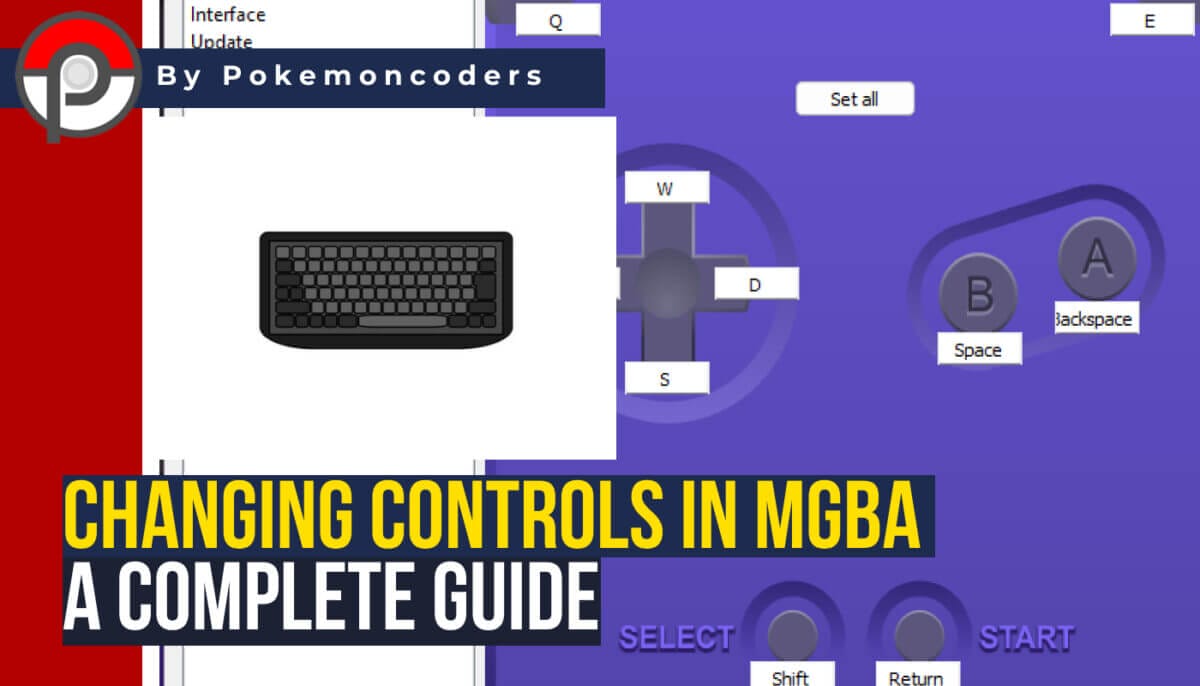
This control setup is easy to remember, especially the WSAD combo, which is like a universal movement control for PC gaming.
Mapping SPACE as the A button makes it easy to tap with both thumbs, while BACKSPACE works perfectly as B since our brains naturally associate it with going back or undoing mistakes.
Assigning Q and E to L and R also gives you quick, comfortable access.
Controllers

PlayStation Controller
For a DS4 controller, I use the D-pad for movement. I use X for the A button and Circle (O) for the B button. L1 and R2 for the L and R buttons, respectively.
Start is the Start button too. The Share button is my Select button. This emulates the original handheld GBA controls perfectly and is my go-to control setup in mGBA.
Xbox Controller
I just love using PlayStation controllers because I’m used to them. But I think the best controller for mGBA is the Xbox Controller. Just because it has the same A and B buttons as the original GBA.
You can also use any third-party controllers. Even Bluetooth ones are good enough for GBA titles.
Useful mGBA Shortcuts

These are the keyboard shortcuts I use for a quicker and more convenient hotkey system. Setting them would make your gaming sessions more seamless.
- Save to Slot – Lshift + F1 (F# corresponds to Save slot #)
- Load State – F Keys (F# corresponds to Save slot #)
- Fast-forward switch – Rshift (keyboard) or R1 (controller)
- Fast-forward speed – Number buttons (2 for 2x, 4 for 4x, etc.)
- Screenshot – F12
- Autofire A – V (Keyboard) Square (controller)
- Autofire B – B (Keyboard) Triangle (controller)
- Cheats – Ctrl+C
Conclusion
Changing your controls in mGBA is one of the easiest ways to make your emulation sessions more comfortable, competitive, and fun.
Whether you’re a keyboard player who just wants quicker access to important actions or a controller owner aiming to replicate the authentic GBA feel, the emulator gives you all the flexibility you need.
Add in a few useful shortcuts, and you’ll spend less time looking for certain actions and more on enjoying your gaming session.
Spend a few quick minutes setting up your mGBA controls, and you’ll enjoy countless hours of a better mGBA experience.
Of course, we can’t talk about GBA games without mentioning Pokemon. So if you’re looking for the next ROM hack to play or even cheats for your favorite Pokemon games, Pokemoncoders is your best resource.
