

They say that the PC is the best system around. They are said to be more powerful than any other available consoles on the market today.
As we all know, PCs can even run emulators of older systems. This shows you how strong a PC is if it can run emulators for systems like the PlayStation 3, Xbox 360, and a ton of Nintendo systems.
For an emulator like DeSmuME, any modern PC or gaming laptop can run it with little to no problems. However, back in the day, during the late 2000s and early 2010s, some people struggled to make DeSmuME work on their devices.
Maybe some people today still do, but here are the best DeSmuME settings for low-end PCs that are worth trying.
More DS-related stuff from us:
- How to Patch NDS ROMS With XDelta to Play DS ROM Hacks
- 7 Best Nintendo DS Emulators for Cheating
- Pokemon DS Rom Hacks List
- How to Use Cheats in Pokemon Games on DeSmuME Emulator

Why Do Low-End PCs Struggle With DeSmuME?
The simple answer is that the processing power that DeSmuME needs has to be up to par.
While the emulator doesn’t require a graphics card to run, DeSmuME will stutter or lag a bit when the PC is unable to handle it.
Nowadays, any modern PC, even around 2020, can handle DeSmuME. However, there are those who still use older PCs and some laptops that aren’t meant for giving.
The good thing is that with a few adjustments to the settings of DeSmuME, you can make it run smoothly on your low-end PC.
Recommended Settings to Adjust
These are some recommendations and adjustments to some settings when it comes to DeSmuME. Change any of them if needed and see if the game runs smoothly.
You don’t have to change all of them if you get the result that you want right away.
Frame Skipping
This is a good way to start, and that is to frame skip. By default, the frame skip is set to zero. If the game runs slowly or stutters, set the frame skip to 9.
Also, do not check the Limit Framerate, because now, the game will move faster, or at least it won’t stutter.

If the game is moving too fast, you can reduce the frame skip number to less than 9. Doing the frame skip makes the game move faster than normal, even without using the turbo feature.
This is perfect if the game runs slowly on your low-end PC.
Enabling the Bus-Level Timing
Most of the time, this setting is already enabled by default. If it isn’t, you can simply turn it on and check whether it improves your PC’s performance.
According to its description, the option is designed to boost game performance and address certain bugs.

On a modern PC, you may not notice much of a difference even if it’s turned off, since newer hardware can easily handle most tasks.
However, for low-end PCs, enabling this feature can be especially helpful in fixing performance issues and ensuring smoother gameplay.
Using the Dynamic Recompiler
This is somewhat similar to the Bus-Level Timing. This has more of an effect on the turbo feature.
When this thing is turned off, the turbo feature doesn’t feel like it is speeding up the game.

Turn this on, and it helps the performance on your PC. It makes the turbo feature feel a lot faster when it is turned off.
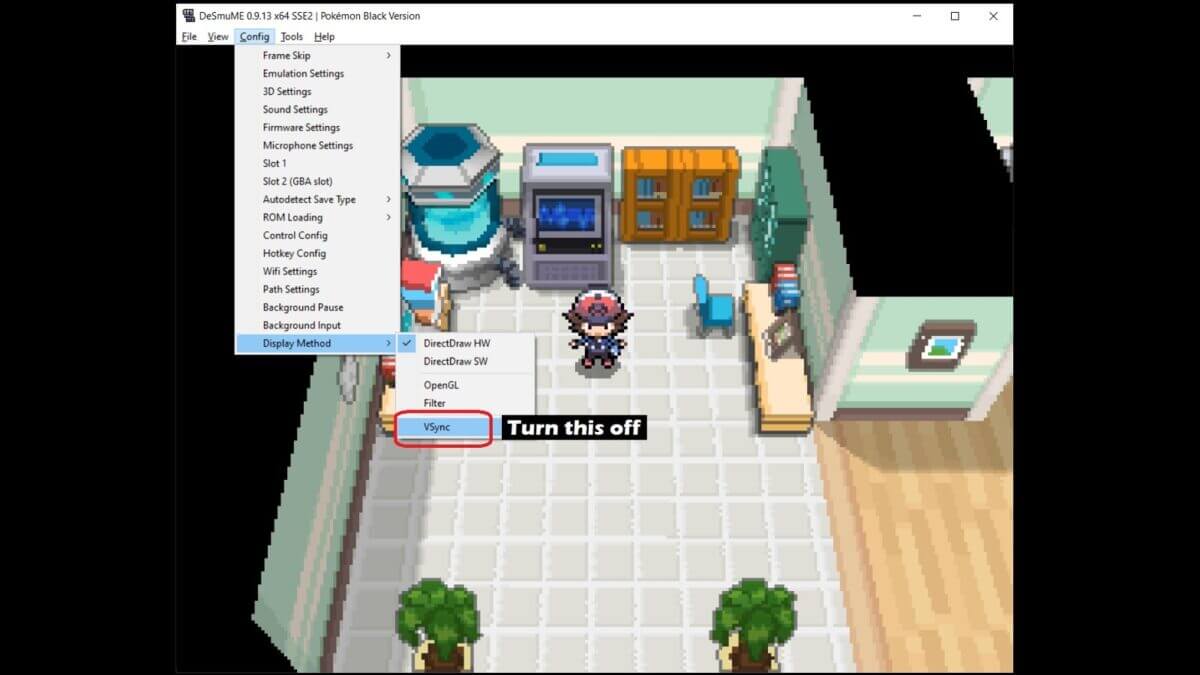
Turn off the VSync
VSync is a feature where the game synchronizes the graphics card’s frame rate to a monitor’s refresh rate. This is done so that screen tearing can be avoided. Turn this off so that DeSmuME doesn’t need to process this.
Even with modern games today with the high-end graphics, VSync can be a pain. That’s why most players just turn it off.
3D Settings
This is the last piece of advice we can give if you want to have the best DeSmuME settings on low-end PCs.

If you take a look at the image above, there are a lot of features that you can adjust. Try unchecking one box at a time and see if the performance improves.
You can check out Enable Textures, Fog, Edge Marking, and the rest. This is like when you play PC games, but you have to adjust them to be at the lowest settings so you can run the game.
When they are unchecked, the game will run better, although you’re sacrificing some visuals.
FAQs
Does adjusting the settings give bugs?
We haven’t encountered any bugs, nor have we read any game-breaking ones from other players.
The worst that can happen is that the game just runs slowly or the settings have no effect. That just means that the PC just can’t handle DeSmuME.
Do these settings apply to different versions of DeSmuME?
Yes, we tried them on the versions 9.10 and 9.13. The wording on the settings may be different, but they can still work for any and even older versions of DeSmuME, dating back to 2011.
In Closing
Hopefully, these tips to have the best DeSmuME settings for low-end PCs have helped you. There are still people today who are struggling with running some emulators.
After all, there are those who play on their laptops, and if you don’t have a gaming one, you might have a hard time running DeSmuME.
The advancement of technology has made running emulators a bit more convenient. If your PC can’t handle it, there are some who choose to play on their phones.
There is a DeSmuME for mobile devices, so that’s an option and as portable as it is intended to be.
